


LinkedIn has a feature that most people don’t know about.
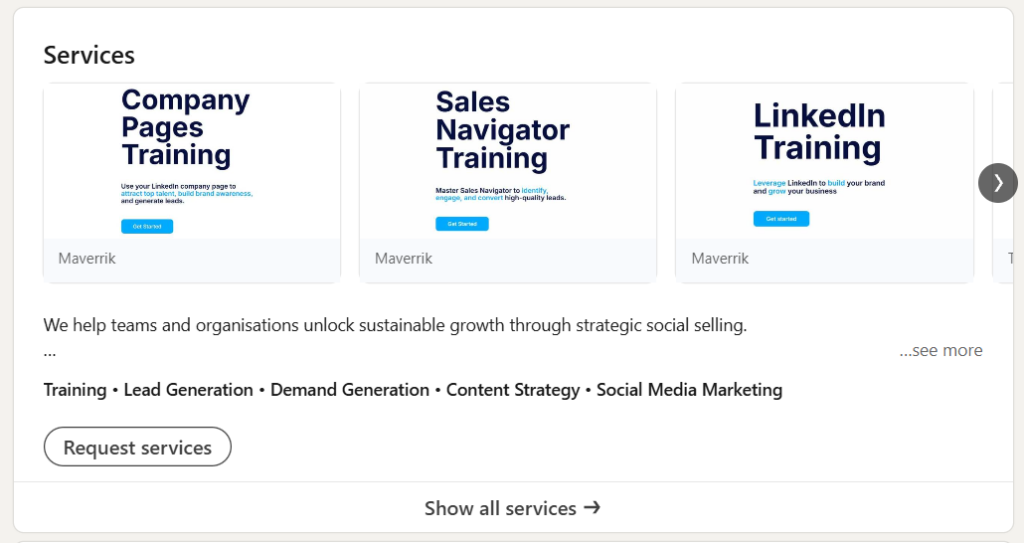
It’s called the Services Page, and if you’re selling services, it’s worth paying attention to.
It’s basically a way for potential clients to find you and send you project requests directly. And if you set it up properly, you can get matched with people looking for exactly what you offer.
Here’s how it works.
What Is The LinkedIn Services Page?
Your Services Page is where you list the services you offer. When someone on LinkedIn is looking for a service provider, LinkedIn matches them with people based on:
- Service category
- Location (if relevant)
- Language
If you match what they’re looking for, they can send you a request. You get notified, and you can either submit a proposal or decline.
Think of it as inbound leads coming to you, rather than you chasing them.
How The Admin View Works
When you set up a Services Page, you get an admin view. This is where you manage everything.
When a potential client sends you a request, it appears in your New Requests section. You can see what they need and decide whether to respond.
You have two options:
Submit a proposal – Enter your proposal details and a personal message, then click Submit. This starts a conversation with the prospective client. A project gets created in your admin view so you can track it.
Decline – If it’s not a fit, you can decline. But be aware this is irreversible. Once you decline, the request is removed from your admin view.
Submitting a proposal doesn’t guarantee a contract. It just starts the conversation. But it’s a warm conversation with someone who’s already looking for help.
How To Get More Service Requests
Here’s where it gets interesting.
If you have a Premium Business, Sales Navigator, or Recruiter Lite subscription, you can turn on a setting called “Get more service requests.”
When this is enabled, you become eligible to receive additional requests beyond just the ones sent directly to you. LinkedIn matches you with clients based on your service category and locale, even if they didn’t specifically find your profile.
More matches. More inbound leads.
How To Turn It On
- Go to your LinkedIn Service Page admin view
- Click the Edit Page button
- Under Premium Settings, turn on the “Get more service requests” toggle
That’s it. You’re now in the pool of providers that LinkedIn matches with incoming requests.
A Few Things To Know
- This feature is being rolled out gradually, so you might not have access yet
- If you offer services on a Company Page, you’ll need a Premium Company Page subscription to use this feature
- If a client’s request has already received the maximum number of responses, you won’t be able to respond
- You’ll get notifications or emails when someone requests your services
Is This Worth Doing?
If you sell services and you’re already on LinkedIn, yes.
It takes a few minutes to set up. You’re essentially telling LinkedIn what you do and letting the platform match you with people who need it.
It won’t replace your other lead generation efforts. But it’s another channel bringing you inbound enquiries from people who are actively looking for help.
And those are the best kind of leads.
Quick Setup Checklist
- Create or update your Services Page
- Make sure your service categories are accurate
- Check your location and language settings
- If you have Premium, turn on “Get more service requests”
- Check your admin view regularly for new requests
- Respond quickly to requests that are a good fit
The people sending these requests are already looking for someone like you. Make it easy for them to find you.