

So, you’re looking to create a LinkedIn company page, but you’re not sure how to set it up properly or which parts matter most.
This article through the whole process of getting the page live, optimised and ready to use.
I’ll show you what to add, what each section does and how to avoid the setup mistakes that weaken your page.
We’ll go through…
- Choosing the right type of page
- Creating the page
- Adding your company details
- Choosing your URL
- Choosing your tagline
- Writing your company page overview
- Creating your page banner
- Choosing your page specialities
- Optimising your page for search
- Linking your employees
- Growing your page followers
I’ve also included a tone of tips and tricks for each part.
So, let’s get into it.
Step 1: Create a LinkedIn company page
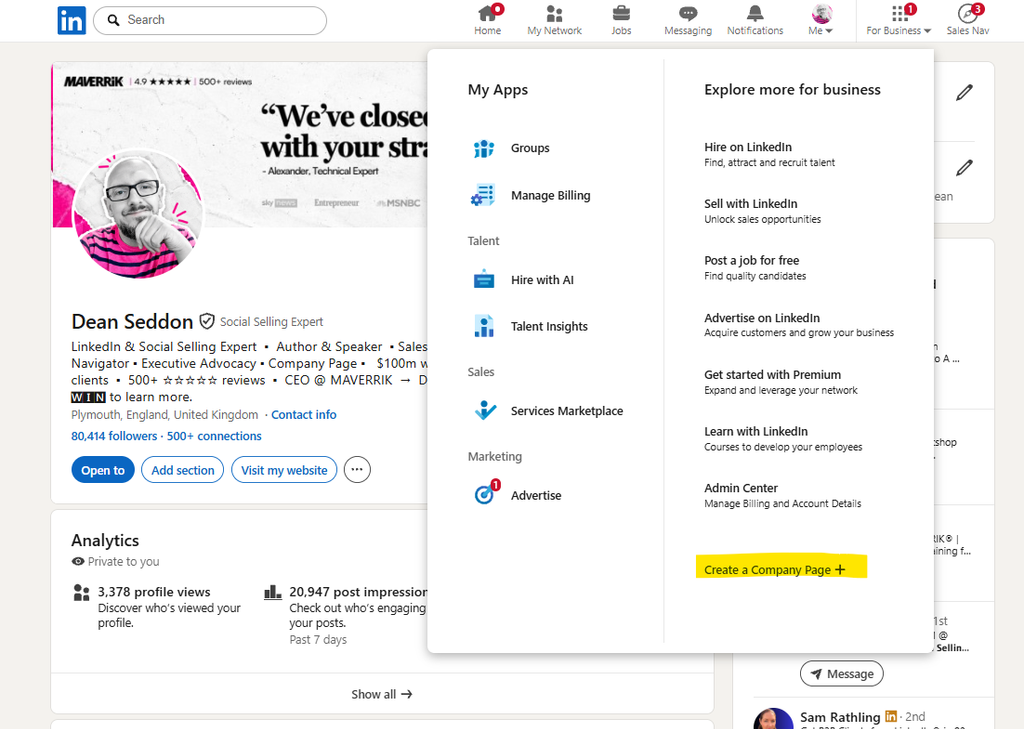
The first step is to create a LinkedIn company page.
To do this you head to the “For Business” icon in the top menu.
If for any reason, it doesn’t show there, you can also head to this link to get directly to the LinkedIn’s Create A Company Page .
Step 2: Choose your organisation type.
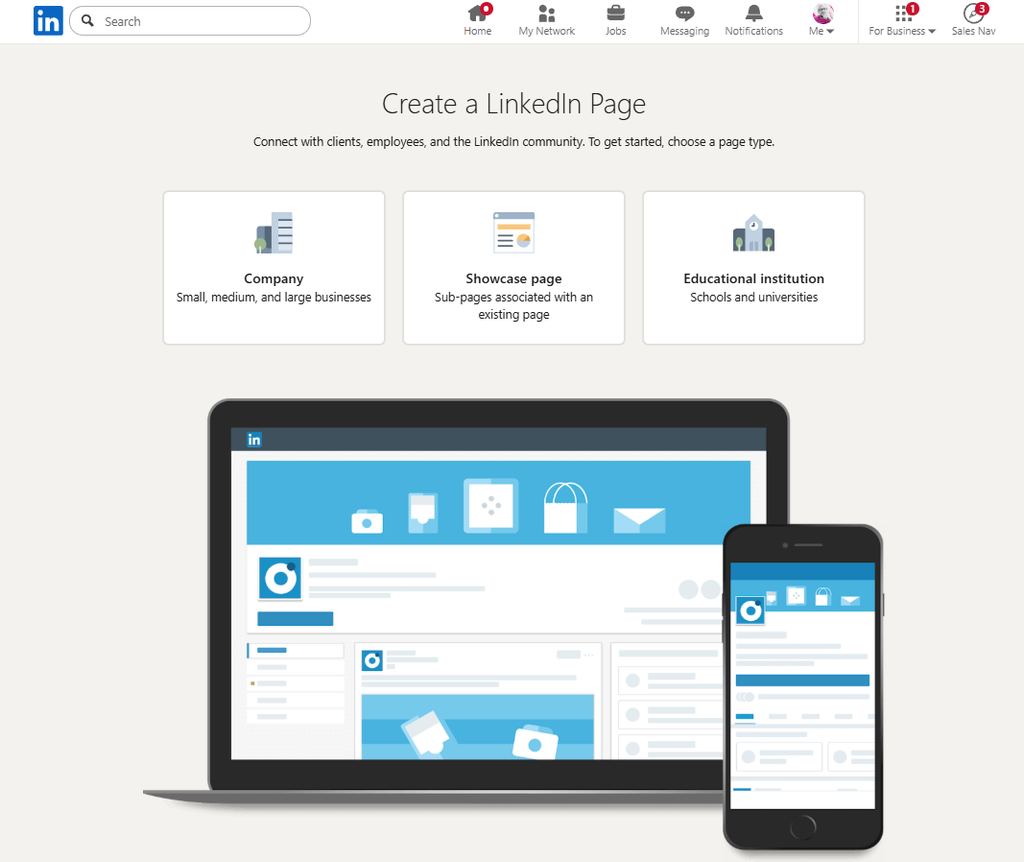
There are three types of page you can create, a Company, Showcase page or Educational Institution page. For most people, they want to create a Company.
Page types to consider when you create a LinkedIn company page
When you decide to create a LinkedIn company page, you can select between a standard Company Page, Showcase Page, or Educational Institution Page.
Company Page
Best for: Most businesses, brands or organisations.
- Main LinkedIn presence for the company
- Employees can link their job to the Page
- Supports posts, followers, analytics and advertising
- Best for company-wide content and updates
- Limitation: For a small owner operated business, your profile is more useful for lead generation, page more for validation, credibility.
Showcase Page
Best for: For a product, service, division or sub-brand within a company.
- Linked to an existing Company Page
- Has its own followers, posts and branding
- Useful for targeting a specific audience
- Can support a separate content strategy
- Limitation: Followers of the main Company Page don’t automatically follow it and this page needs active management.
Educational Institution Page
Best for: For schools, colleges, universities and other education providers.
- Built for education organisations
- Supports links with students, staff and alumni
- Can publish updates and build followers
- Helps people find and connect with the institution
- Limitation: Intended for education institutions, not standard businesses that sell training
Step 3: Add company details to create a LinkedIn company page
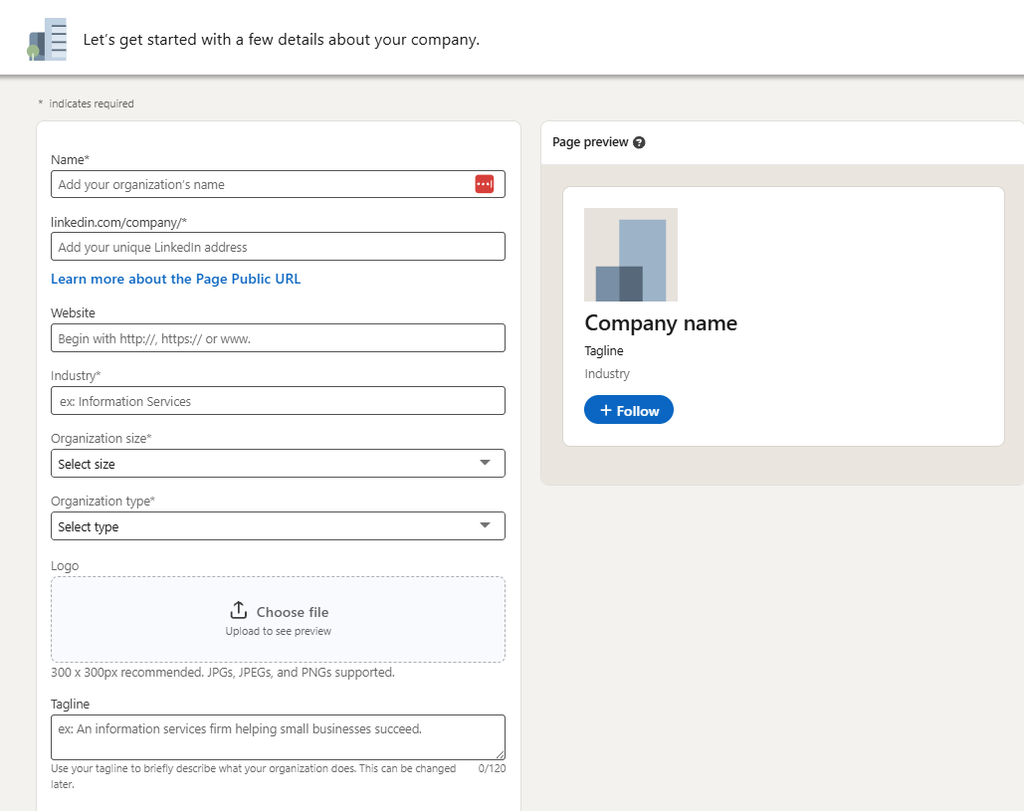
Next, you’ll want to add your company details.
- Name: The name of your organisation. Can be useful to add an explainer if your name is common (e.g we added Social Selling Training, so we’re instantly recognisable).
- Page URL: This is the URL for your page, this could be /companyname or you could use a keyword like /socialsellingtraining – the advantage of a keyword is you will increase your discoverability off platform.
- Website: This is your website. I often recommend using a Linktree or customisable page here as it allows you to get people to the right places faster. It’s also quick to update and re-prioritise where clickers go (e.g blogs, job applications, specific services) If you website is big, it’s easy for that interest to get lost on your site.
- Industry: LinkedIn’s industry categories don’t always match your industry exactly, so you may have to find the best match. You can check out the LinkedIn’s industry categories here.
- Organisation Size: This is your headcount. This is your total headcount, not just the number of employees on LinkedIn.
- Organisation Type: This is the structure of your organisation, so the options are self-explanatory with one exception – self employed and sole proprietorship – this is a legal definition – but for our purpose they’re the same. Personally, even if you are a one-person – I’d go for 1-10 – it looks better.
- Upload your logo: LinkedIn allows you to upload your logo and suggests a 300px x 300px logo – I’ve added some specific tips for this below.
- Your Tagline: Your tagline is the first piece of copy your visitors see, it needs to answer two questions “what do you do? and “why does it matter for me?” – this hooks them into checking you out more.
6 tips for your LinkedIn Company page logo
Next, we need to upload a logo for your Company page, I have a couple of tips here from years of frustration.
- Compression: LinkedIn compresses your images, if your logo uses high saturation colours (pink for my personal brand is a classic issue here) any text blurs and looks low quality – so it might be better reducing the saturation or using a black and white version for a crisper image. The compression tends to show up more on desktop than mobile – if you can live with it, great – in my case, I obsess about it.
- Sizing: The logo itself shows up on your employee profiles, across your page and in search – check how it looks on mobile where it is shrunk down – make sure you logo is still visible.
- Avoid white on white: If you choose a white background for your logo image, just remember on most screens your logo will sit in a sea of white backgrounds, so it could get drowned out.
- Avoid Photos: Photos can look better on the page itself, but when you see the logo at the top of a profile or in an employee’s experience section, it will be difficult to see.
- Larger and JPEG: when you upload your logo, LinkedIn advises a 300px 300px image. I’d recommend you creating a 600px x 600px logo, outputting it as a JEPG and compressing it. If you use Canva this is simple to do. Just helps how your logo is found outside of LinkedIn.
- Filename: This is anecdotal, but if your file name is descriptive (e.g maverrik-linkedin-training-logo.png) it can help the Google understand what the file is when it is indexed.
Congrats your page is now LIVE – but it’s in no shape for visitor’s just yet.
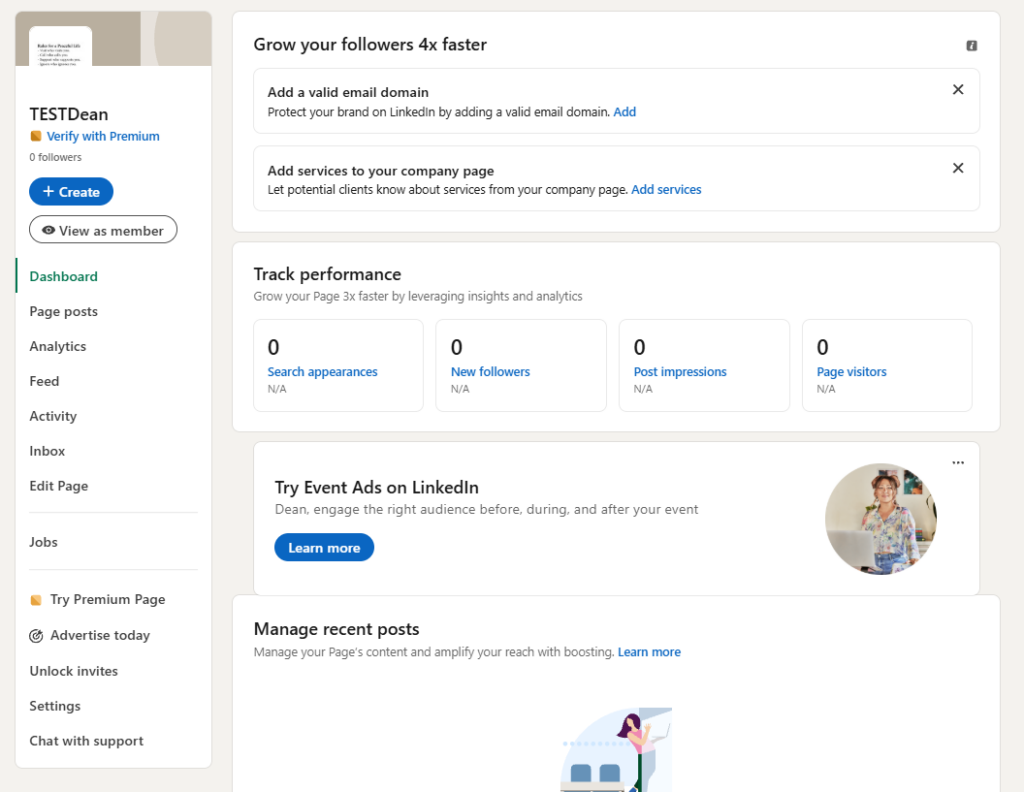
Once the basic shell is set up, adding complete organizational details helps validate your business when you create a LinkedIn company page.
Step 4: Customise your LinkedIn company page
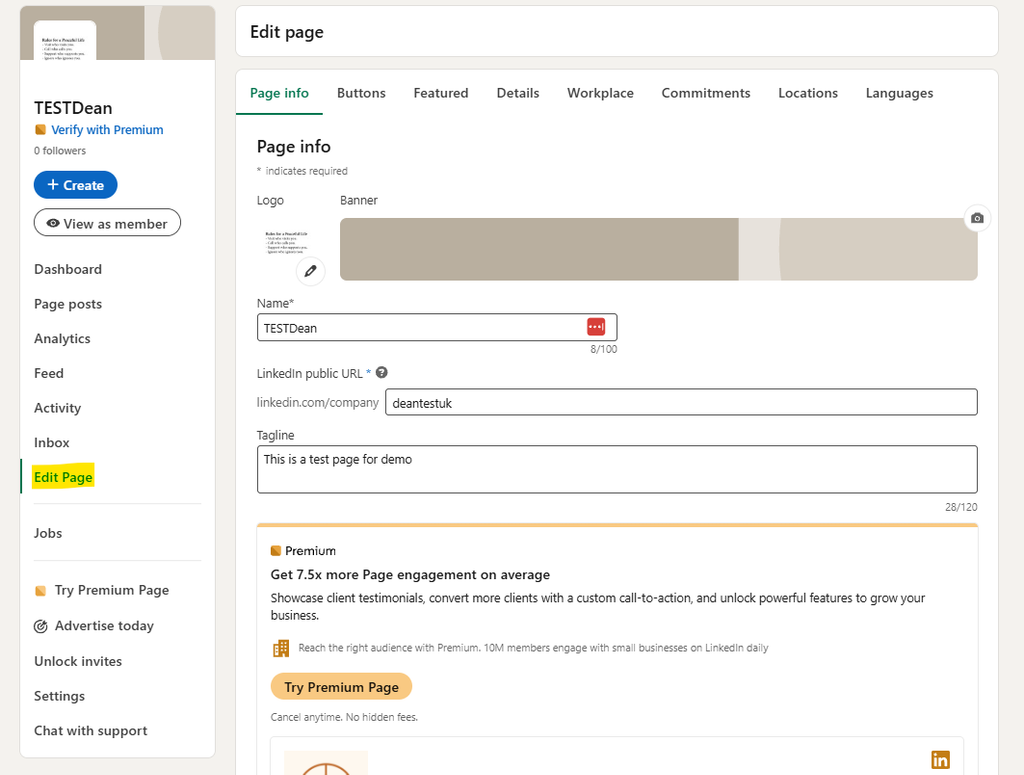
Now, we’ll get the setup ready for you to start posting and getting visitors. In this section, we’re going to:
- Add your banner
- Optimise your overview
- Add specialities
- Add a location
- Link your employees
- Get your first page followers
Add a banner to your company page.
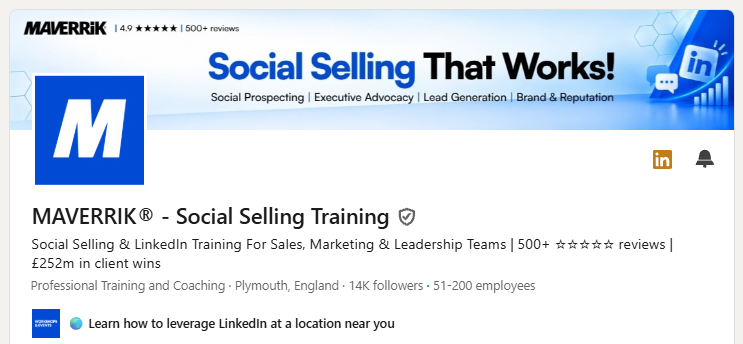
Your banner is the first things visitors see when they land on your Company page.
It can decide whether they hang and keep exploring, or leave.
Having worked on Company page strategy with more than 100 clients, if there is one piece of advice I’d give you, it’s this:
Optimise your page assuming visitors have no idea what you do.
Your banner should spell out what your company does, who it helps and why that matters.
Visitors should understand what you do in less than 4 seconds – if they don’t they’ll leave.
Use a banner size of 1128 × 191 px and use the space to reinforce your positioning with a clear message, strong branding and a visual that supports the message.
9 Tips for your Company page banner.
- Design for mobile and desktop: LinkedIn crops the banner differently across devices. Keep important text central and away from the edges.
- Use large text: Your message must stay readable on a phone, not just on a desktop monitor.
- Avoid generic phrases: Avoid vague brand lines such as “Driving innovation” or “Building a better future”. They force the visitor to work out what you actually do.
- Keep the message simple: One clear proposition works better than several competing messages.
- Don’t overload it: Too many logos, icons, messages or calls to action make the banner harder to scan.
- Use strong contrast: Make sure the text stands out clearly from the background image or design.
- Check legibility at actual size: Don’t judge the design only in Canva or Photoshop. View it live on LinkedIn at desktop and mobile size.
- Test the first impression: Ask someone outside the business to look at the Page for five seconds, then tell you what the company does.
- Premium Page banners: Premium Company Pages can add a rotating banner with up to five slides. Use each slide for a different message, service, campaign or proof point rather than repeating the same idea.
Optimise your overview.
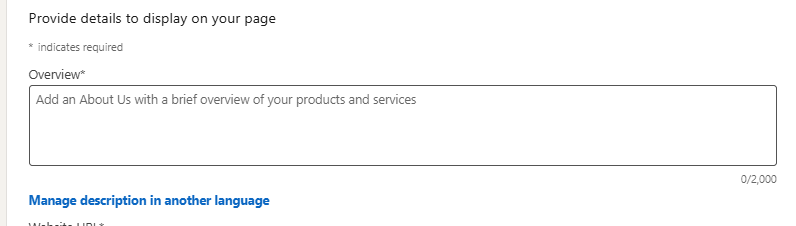
Your Company page Overview gives you up to 2,000 characters to explain what your organisation does, who it serves and why it matters. Your Overview helps visitors quickly understand whether your organisation is relevant to them.
It also gives LinkedIn, Google and AI tools clearer context about your organisation. The words you use help describe your industry, products, services, markets, customers and subject areas.
That context can help LinkedIn understand when your Page is relevant in search and how your Page connects with the content you publish. It also helps Google index your Page and gives AI tools such as ChatGPT, Gemini and Claude clearer information when they interpret public web content.
LinkedIn also says Pages with complete information, including a logo, description and website URL, are more discoverable and can receive 30% more weekly views.
Overview details needed when you create a LinkedIn company page
- Opening value proposition and audience: Say what your organisation does, who it is for and the value it provides. Aim to get this into the first 150 characters on mobile and around 280 characters on desktop before “see more”.
- Core mission: Explain why your organisation exists and the problem, need or what you deliver for your clients in terms of outcomes and value.
- Products, services or activities: State clearly what you provide, whether that is products, services, software, manufacturing, education, research, programmes or other activities. Make it really clear exactly what services you offer.
- Credibility & Proof: Add in any awards, business milestones, accreditations or customer testimonials that give added confidence in your business and your capabilities.
- Search keywords: Use the words your clients use when searching for organisations like yours. Include relevant industry, product, service, market and customer keywords – but avoid keyword stuffing.
- Call to action: Tell visitors what to do next, such as visiting your website, viewing vacancies, contacting your team or following your Page.
6 Practical tips for your Company page overview
- Keep it scannable: Use short paragraphs, no more than 2-3 sentences and bullet points or lists so visitors can understand the key points quickly. Make use of line spacing to avoid a wall of text which will turn visitors off.
- Write naturally: Avoid jargon and keyword stuffing because awkward copy is harder to read and weakens the message. Aim for a readability score of between grade 5 and grade 7.
- Use the 2,000 characters: Give enough detail to help people and search systems understand your organisation, without filling the space for the sake of it.
- Put the most important information first: Visitors may not select “see more”, so don’t bury your main message.
- Don’t rely on URLs in the Overview: They aren’t clickable, so use LinkedIn’s Website field or call-to-action options instead.
- Use special characters and emojis with purpose: They can catch a visitor’s eye, break up sections and make the Overview easier to scan. Don’t overuse them. Unicode characters aren’t reliably searchable, and too many emojis or decorative symbols can make the Page look cluttered or unprofessional. If you use a tool such as LingoJam to create bold-looking Unicode text, keep important keywords in standard text.
Add your Company page specialities.

Specialities are keyword tags on your company page that describe your business does, service areas and help your Company page show up in the right places for people with the right interests.
One big tip to consider here is your keyword choice.
You want to include four types speciality keywords you should add:
- Service Specific Keywords: Sales Navigator Training, LinkedIn Training, Executive Coaching etc
- Industry Specific Keywords: Social Selling, Executive Advocacy, Employer Branding etc.
- Customer Keywords: How your customers might refer to what you do.
- Topic areas: These are keywords linked to what you talk about.
Many of your keywords will overlap, but in some cases, your services might be worded differently to your topic, industry or customer specialities. Likewise your customers might talk about it differently from your industry. So you need a mix of specialities.
In my case, social selling is an industry term, most our clients use “LinkedIn training” or Sales Navigator training” – so we optimise for both.
Why should you add specialities on your Company page?
There are three big reasons to use the specialities section on your LinkedIn Company Page.
- Improve search rankings and discoverability (SEO and AI Search): Your specialities give LinkedIn, Google and AI tools like as Gemini, Claude and ChatGPT extra context about your business. The platforms need to understand what your company does, what it offers and which topics, products, services or markets it is relevant to before they can surface it in a search result, recommendation or generated answer.
- Clarify what your company does fast: On LinkedIn, attention spans are short, most visitors won’t study your Company Page in detail to decide if you’re relevant to them. Your specialities give people a quick way to figure that out. They reduce potential confusion or ambiguity and help visitors understand your business without doing a deep dive.
- Attract the right clients, partners and talent: Search works by matching what someone is looking or interested in with the information LinkedIn has about companies, people and content. Your specialities give LinkedIn more information it can use when making those matches. That can help your Company Page appear when someone is looking for a supplier, service provider, new role, partner or business operating in a specific market or category.
Add your location
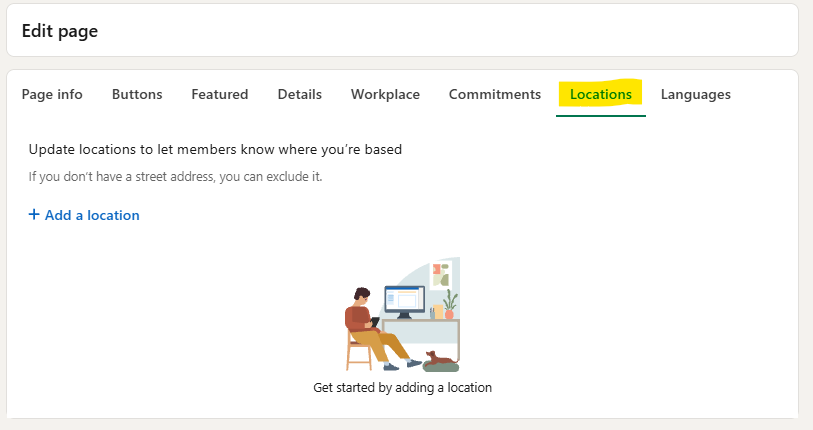
If you are a single site location, you can add a location and it’s automatically set as your primary or Headquarters location.
If you’re a multi-site business, you can add all your sites and then specify which is your primary. Each location you add, you can give it a specific name for example, you could have “European HQ – Dublin” or “[company] – Bristol Bottling Plant”. This gives visitors an understanding of the different sites.
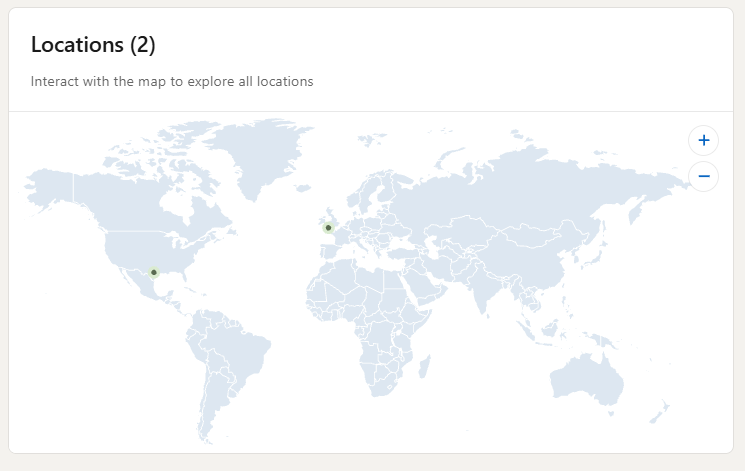
What if we are an online business? If you don’t have a physical location or don’t want to share an address, you can select “My organization doesn’t have a street address” and just add the country where the business is based
Why is this important? If you’re trying to attract talent or your under consideration for a tender – if gives people a sense of your scale, capability and how the organisation is structured. If you post jobs, you should keep any location names consistent across your jobs and locations on your page – then applicants can look up the location itself.
Link your employees
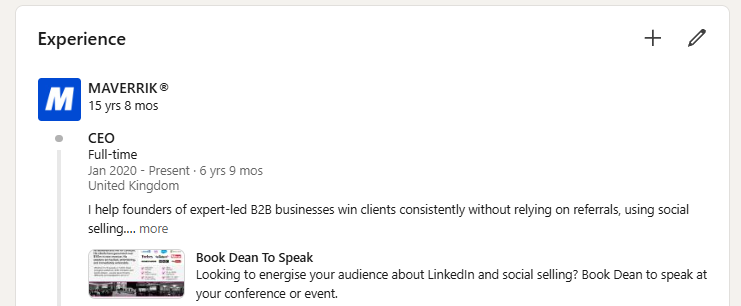
Once you create your LinkedIn Company Page, ask every employee to update the Experience section of their profile and select your Company Page from LinkedIn’s company list. When they type your company name, they need to click the company itself.
If they don’t click the logo or company name, it won’t link correctly (as above), Instead it will look like this:
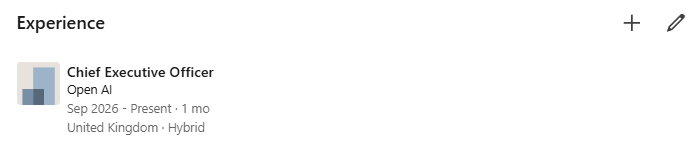
To fix this, they need to edit their role and retype the company name, then select the logo / company name.
When they link it correctly, your company logo appears beside their role. They can also in their profile settings, choose to display your logo at the top of their profile too.
This link sends traffic in both directions. People who visit an employee profile can click through to your Company page, and people browsing your Page can discover the employees who work there.
It also adds trust. If a salesperson connects with a prospect, the prospect can check their profile and confirm they work for your company instead of wondering whether the connection is genuine.
7 Tips for linking your employees to your Company Page.
- Optimise employee profiles: A strong banner, headline, About section and Experience section can drive more profile views. When those profiles link back to your LinkedIn Company page, some of that traffic flows through to the business.
- Check senior and customer-facing profiles first: Leadership, sales, recruitment and account-management profiles often get checked by prospects, candidates and partners. Make sure the company link, logo and role details are correct so people can verify the connection quickly.
- Build an employee advocacy programme: Encourage and equip employees to post and share relevant content from their own profiles. This can increase reach and followers, but it can also become a source of reputation, website traffic, engagement and leads. Our clients often see a clear increase in inbound enquiries and engagement when more employees actively share on LinkedIn.
- Use reposts to extend reach: When employees repost a Company page post, it can reach people beyond your existing followers and help attract new followers to the page.
- Post more human content: Team updates, events, behind-the-scenes activity and employee stories give your people more reasons to share Company Page content with their own networks.
- Add profile linking to onboarding: Make selecting the correct Company page part of every new starter’s LinkedIn setup so the logo and company link appear from day one.
- Remove fake or incorrect employees: If someone appears on your Page as an employee but doesn’t work for you, a Page admin can contact LinkedIn Support and ask for that connection to be removed.
Get your first page followers
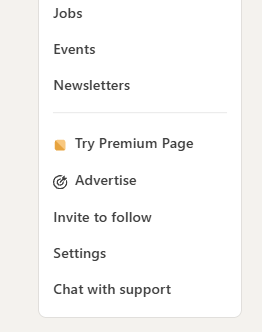
LinkedIn’s Invite to follow feature lets Page admins invite their 1st-degree connections to follow the Company Page.
LinkedIn gives each Page a monthly pool of invite credits. Some Pages get 100 invites per month, others 250. The allowance varies by Page and resets each month. When someone accepts your invite, LinkedIn gives that credit back so you can use it again.
Use the feature to grow a relevant follower base faster and bring more of the right people into your Page audience.
How to grow followers once you create a LinkedIn company page
- Start with salespeople: Their networks often contain prospects, customers and decision-makers.
- Do it with them: If you ask people to do it later, they’ll forget.
- Invite relevant people: Don’t chase follower numbers with people who have no reason to care about your business.
- Reuse returned credits: Accepted invites give you another credit to use.
- Use the monthly reset: Check your allowance again at the start of each month.
- Prepare the Page first: Add useful content to your feed and Featured section before inviting people.
- Use paid follower campaigns carefully: Target tightly so you pay for relevant followers, not vanity numbers.
8 tips for growing your Company page.
- Use the Featured section: Pin your most useful posts, documents or campaigns to the top of the page so visitors see them first.
- Add your Services section: Show visitors exactly what you offer without making them search through your feed or website.
- Consider a Premium page: Premium gives you auto-invites for people who engage with your content, a rotating banner, and a custom link at the top of your page and on your posts.
- Post native content: Share posts, documents, images and video people can consume on LinkedIn. If you post external links too often, you give people fewer reasons to engage on the platform and can weaken reach.
- Use LinkedIn Newsletters: Build a repeat audience around the topics your company wants to own. Subscribers receive notifications when you publish a new edition.
- Target your posts: Once your follower base reaches LinkedIn’s minimum audience size, target organic posts by criteria such as location, industry and job function instead of sending every post to everyone.
- Expect the first 1,000 followers to take work: Publish useful, actionable content for your target audience and regularly give readers a clear reason to follow the page.
- Give people a direct CTA: If a post delivers value, tell readers to follow the page for more content on that topic.
Good luck getting your page live.
If you want more help getting more visibility, engagement and leads from your LinkedIn company page, book a call to learn how we can help.