


TL;DR: The simple answer is yes, you can, however, Sales Navigator can help you find more qualified leads and manage them better so you avoid losing people or spending time on wrong fit leads. Free accounts often hit commercial limits searching and connecting with leads, while Premium doesn’t have these the filters are limited.
Almost on a weekly basis, I meet people at events who ask me the same question, Can I get l leads without Sales Navigator. I’m a huge advocate for using Sales Navigator, but for many it isn’t always needed. So, In this article, I’ll break down the where Sales Navigator is useful and if your budget can’t stretch to it, alternative ways to approach it.
Over the years, as LinkedIn has matured, many of the free features have been moved into paid features such as Premium and Sales Navigator. In 2018, there was no connection limit and the search was almost unlimited. In fact, back then you could upload a contact list and LinkedIn would auto connect. It was a great time to be on LinkedIn. Today, many of those features are gone and you have to be more strategic to get a result.
How to find leads on LinkedIn Premium and Free
To find your leads on LinkedIn free and Premium is done through the search bar at the top of the LinkedIn site / app. You can hit enter inside the search and and it loads a search across posts, people, companies etc. You can select people and then use the “all filters” to narrow it down.
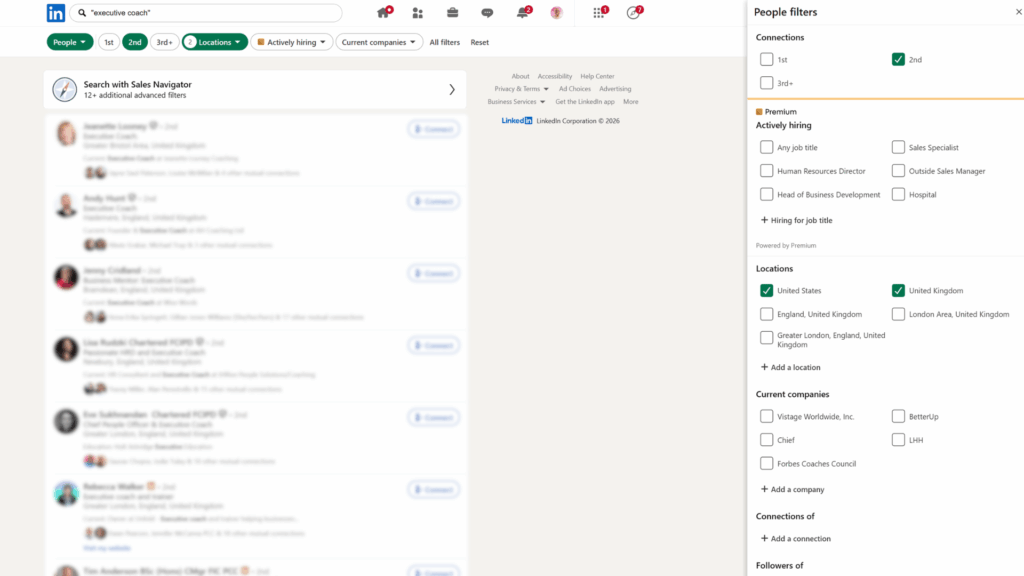
In addition, you can use standard LinkedIn Boolean search syntax to narrow your searches further and filter by specific job titles or skills. Boolean allows you to look for keywords across peoples profiles. This can help you exclude people or include people based on what key words are on their profile.
For example…
- Boolean Search: “Coach” NOT “LinkedIn” – Anyone with the word coach in their profile but no reference to LinkedIn.
- Job Title: coach Boolean Search: NOT (“LinkedIn OR “social selling” OR “Sales Navigator”) – excludes anyone referencing those keywords on their profile.
- Job Title: Software Developer Boolean Search: “jSON” – Software developers with jSON coding experience.
Boolean works across all 3 types of LinkedIn account but can be useful in finding people more accurately when you have a free or premium subscription. Boolean can be used to find leads posting about topics, asking for recommendations of service providers or even companies that reference specific keywords.
One quick tip: If you use Google Chrome or another browser, when you do a search, bookmark it in your browser so you can come back to it later. I do this with content – I bookmark all the content talking about LinkedIn and Social Selling – it’s good for inspiration and t get involved in discussions.
How to find leads on Sales Navigator
Sales Navigator whilst expensive can save you hours of wasting time and get you talking to more of the right leads faster. It’s also got some nifty lead management features most never use.
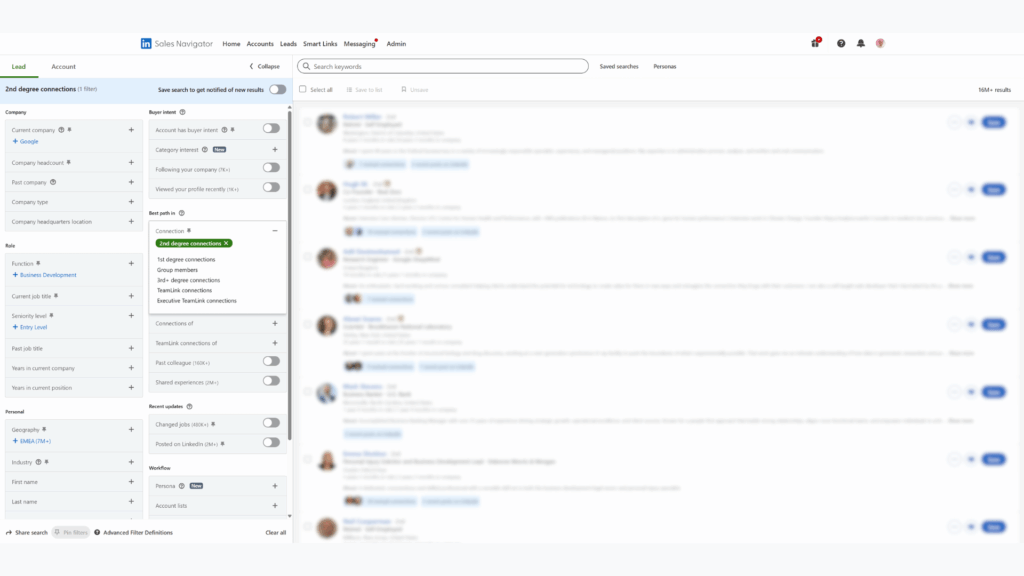
Sales Navigator has significantly more search filters, allowing you to pin point your leads more accurately. These filters help you eliminate and find people more quickly and avoid you connecting or engaging the wrong people.
Some of the main features that aren’t in premium are:
- Company Headcount: Search for leads and narrow by the size of their company.
- Years in current company: This is useful for finding people new in the business, not tied to old ways of working and also leads that might have outsized influence on decision making.
- Years in current role: New in role people are often new in role and can look at things with fresh eyes. These can be people more open to trying new things.
- Posted on LinkedIn: Whilst most people don’t post (only 2.7%) in 2026, it can be helpful to focus on these as you can make outbound engagement part of your lead nurturing strategy.
- Postcode/Zip Code search: Premium and Free have location searches, with Sales Navigator you can look at locations more forensically – by distance from a zip code or post code.
- Department Headcount: A great way to see how big a department is and find leads with smaller or larger teams – this is great for tayloring messaging.
- Headcount growth: This filter is great for seeing which companies are growing or contracting. This can help you see the high or fast growth businesses.
- Buyer Intent: LinkedIn has it’s own propreitary buying intent system, which is highly accurate. It can track interest patterns in your business and reverse search it – this us useful for prioritising leads. This feature is an advanced feature of LinkedIn Sales Navigator Advanced – I use this all the time and my response rate with leads which moderate to high intent is over 38%.
There are significantly more filters than this, but often these are the major ones which help people see quickly how they can find the best quality leads.
What other features make it easer to get leads inside Sales Navigator?
I could list out a number of features but these are the big additional ones which make Sales Navigator beneficial. I’ve also included some recommendations of how to do these same things without Sales Navigator.
Account IQ:
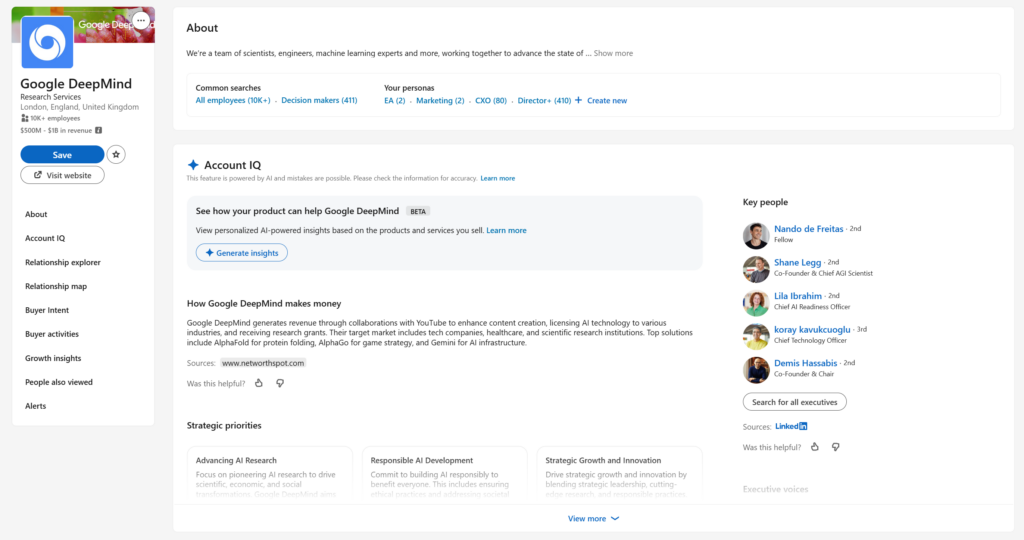
Sales Navigator has an AI feature which researches your target companies and provides you with insights on their business, including their priorities, challenges and news stories. This can be great for understanding the wider context of their business. Included in the insights is tailored feedback on how your service or product may fit with their business.
How can get Account IQ without Sales Navigator?
My recommendation is that if you like the look of the Account IQ feature, but don’t want to make the leap to Sales Navigator, you can create a CustomGPT / Project in your AI of choice (Perplexity, Claude and ChatGPT is good for this). With a good prompt it can do the same at a fraction of the cost.
Lead and Account Lists
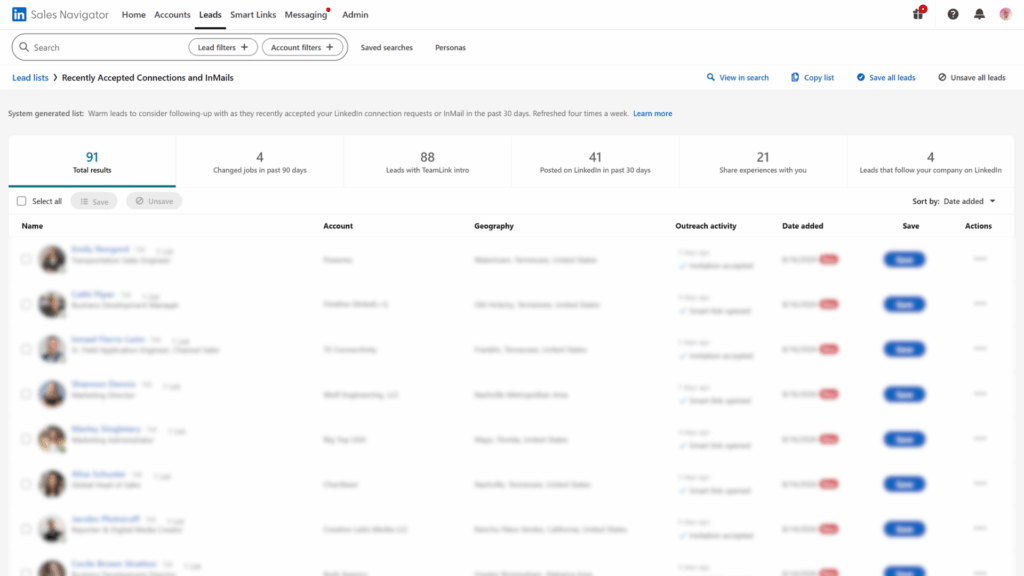
Inside Sales Navigator you can save leads and accounts so you can keep track of them. Rather than using a clunky CRM, you can engage leads inside LinkedIn quickly and never lose them or forget their names. The beauty of this is that it’s visual and you can save notes there too. Think of it as a battlefield prospecting CRM – it’s quick, simple and easy to use.
You can create multiple lists for different purposes. My favourite approach is to create lists by stage – so I can see instantly where I am up to and where each lead is in my process.
How can get Lead and Account Lists without Sales Navigator?
It’s tricky to do this as well as Sales Navigator, as the visual interface and speed of use, but you can replicate this by building a simple social selling tracker.
There are couple of ways to do this, the old fashioned way and the new AI approach.
- Spreadsheet: A simple spreadsheet that has the key fields (first name, last name, profile url, job title, company) alongside columns marking the stage of the process which you can add notes.
- AI Tool: You can build a simple tool using Lovable or Claude to help you get similar benefits to Sales Navigator Lists – however the speed of loading can be a pain. Also, if you use it too aggressively it can result in a restriction.
Customised Home Feed
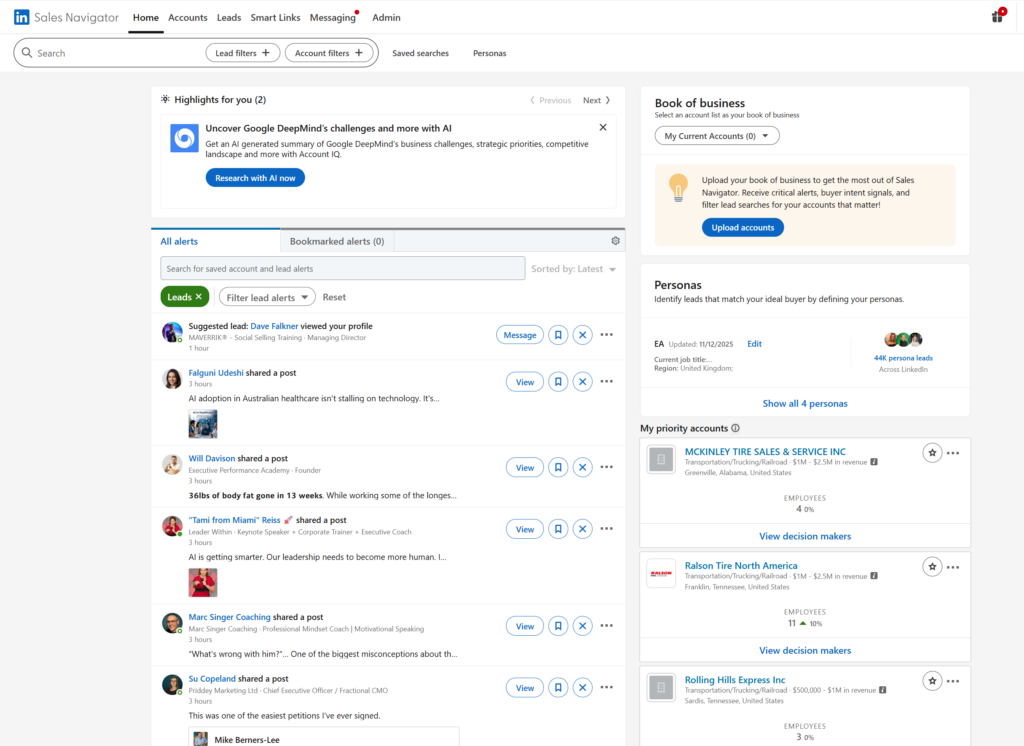
When you Save leads and accounts in Sales Navigator, the home feed will show you the latest news, updates and content about each one. You can filter these use them to inform your outreach or as part of your engagement strategy. This prevents you getting sucked into the normal LinkedIn feed or getting distracted by all the updates in the normal LinkedIn.com interface.
How can get the curated home feed without Sales Navigator?
Similar to how we discussed earlier, you can do a search by posts on LinkedIn.com and instead of using keywords you can include leads using the from member filter.
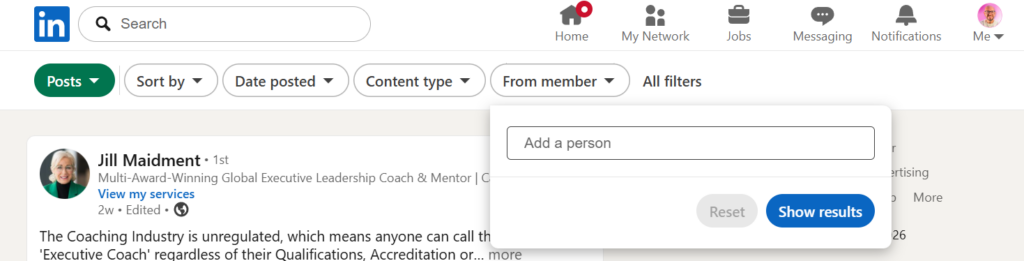
Once you’ve added all the leads (there are limitations on numbers). You can then bookmark that search and come back to it. It’s not as thorough as Sales Navigator but it is a great option.
Can you get leads without Sales Navigator?
You certainly can get leads from LinkedIn without Sales Navigator – many do. Without Sales Navigator, your success relies heavily on your messaging and positioning. Make sure you have a clear strategy to convert high value clients on LinkedIn once they enter your network, the main challenges will be usage limits and without a solid documented process, it can be significantly more time consuming.